
Brief
SocKey is a game ideated by Adriane, a master’s student at University of Creative Arts, Canterbury, and developed by me.
The game explores the idea of using AI powered NPCs to engage children with socratic conversations.
Disclaimer, Sockey is very much a work in progress…
Gameplay
Contributions
- Grey-boxed level designs, and developed dynamic environments that react to player reasoning points.
- Fine-tuned and iterated on the AI dialogue system (uses Ollama, JSON and Rest API for UE), testing various AI models and JSON queries.
Initially given GDD
- The initial GDD that was presented by Adriane, this was developed and iterated further based on feedback.
Development





SocKey was developed on unreal engine, with help from VaRest to send JSON prompts to an open source AI that runs locally on the system, powered by Ollama.
This means that anyone who wants to run the game would also have to install Ollama, and the mistral instruct AI model.
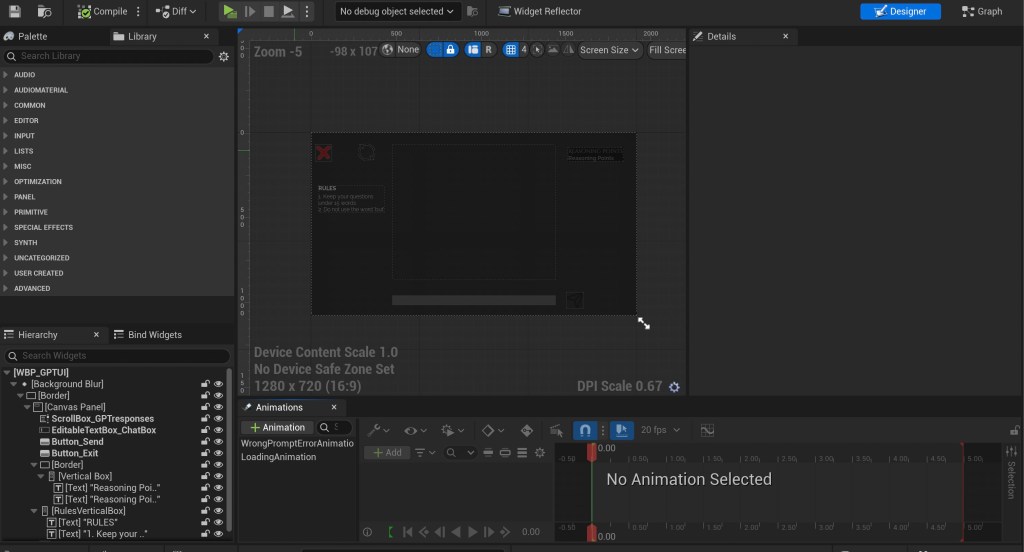
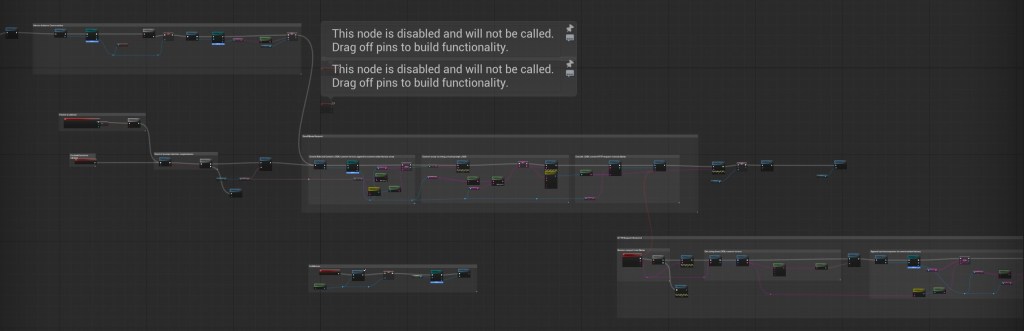
The blueprint shown above was on a widget UI element, the UI itself was designed to replicate what one would typically see when chatting with an LLM like chatGPT.
These blueprints are what drive the chat feature, and what will be unpacked in this section of the blog.
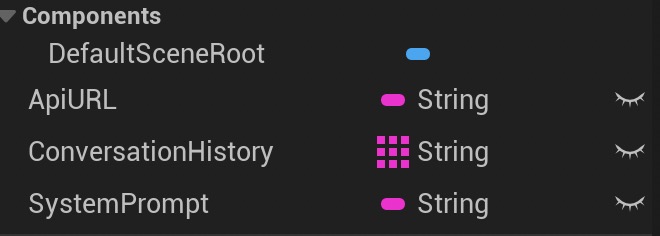
Step 1 is to create a separate BP_Ollama where we can store and change all these variables, so that any changes we want to make further into development can be made more easily by simply accessing BP_Ollama.
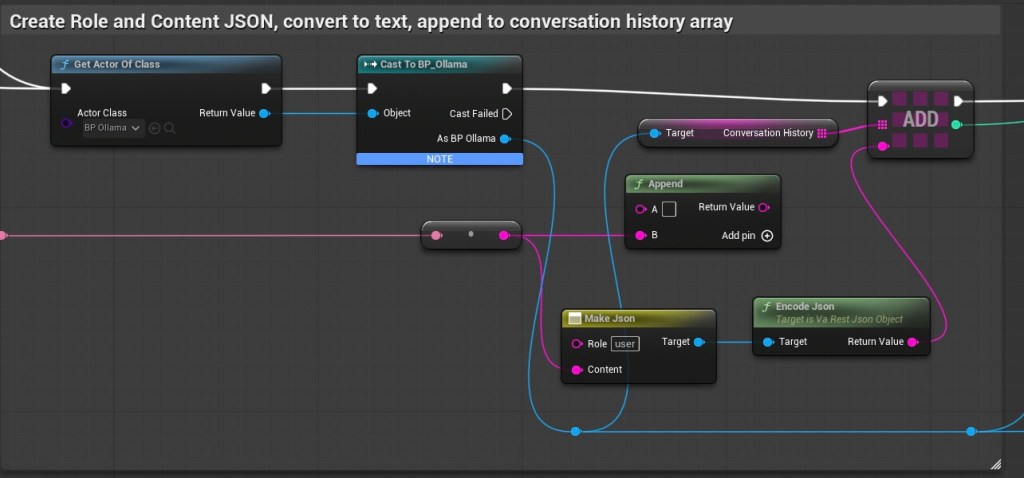
From now on, all the blueprints will be done in the WBP_GPTUI widget UI. All these blueprints are plugged into the send button.
This took a while to uncover, but before creating a JSON prompt, we need to be able to create a JSON history.
This is because when we send history to ollama, ollama expects it to be written in the following format
{
  "model": "llama3",
  "messages": [
    { "role": "system", "content": "You are a helpful assistant." },
    { "role": "user", "content": "Hello!" },
    { "role": "system", "content": "Hi there! How can I help you today?" },
    { "role": "user", "content": "Tell me a joke." }
  ]
}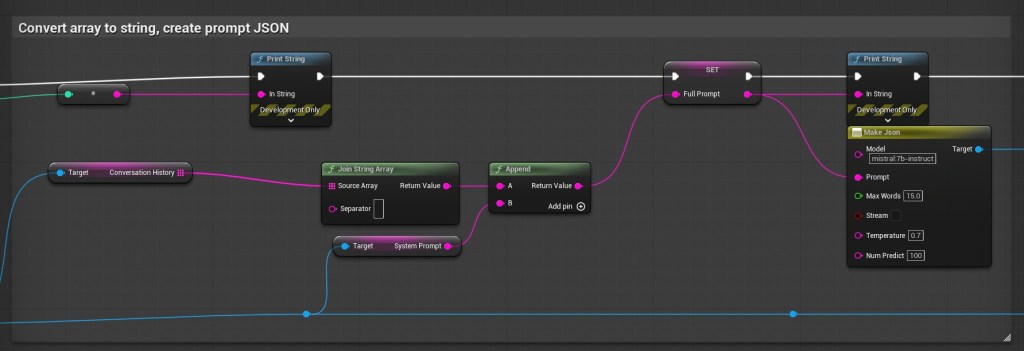
This is where we actually create the prompt. we want to tell ollama which model we’re using, the prompt, and the temperature at a minimum.
If needed, one can also customise prompt based on need. I keep experimenting all the time.
In my current set up, I’m using Mistral instruct model, and am trying to design my prompt such that it’s simple, short, and engaging for children. I find that mistral is better at following the 15 word rule, although its not quite perfect yet.
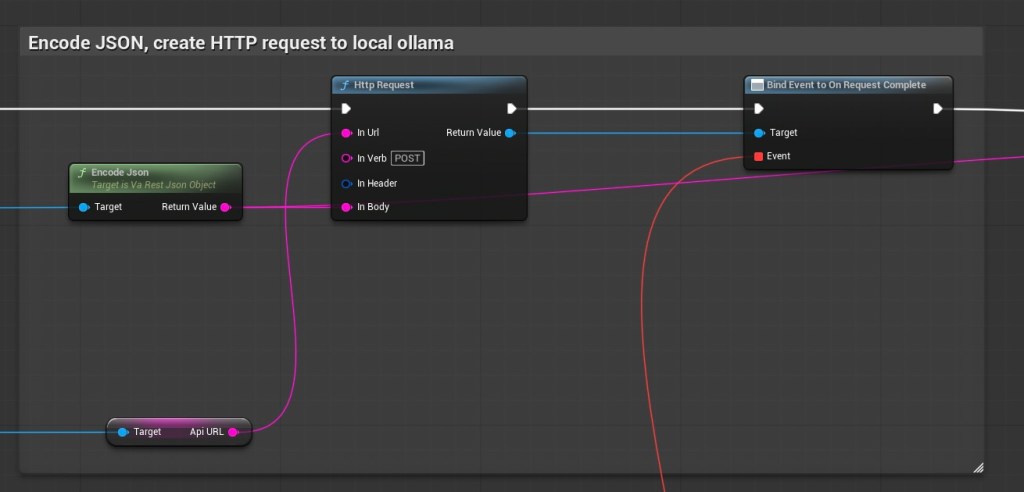
This step is pretty straightforward. We want to create a HTTP request to our local ollama server.
To do this, first we encode the JSON prompt, feed it into a HTTP request node as its body, feed the API URL from BP_Ollama into the in URL, and label the In Verb as POST.
Then we plug the return value into a ‘bind event to on request complete’
this feeds down into a different event.
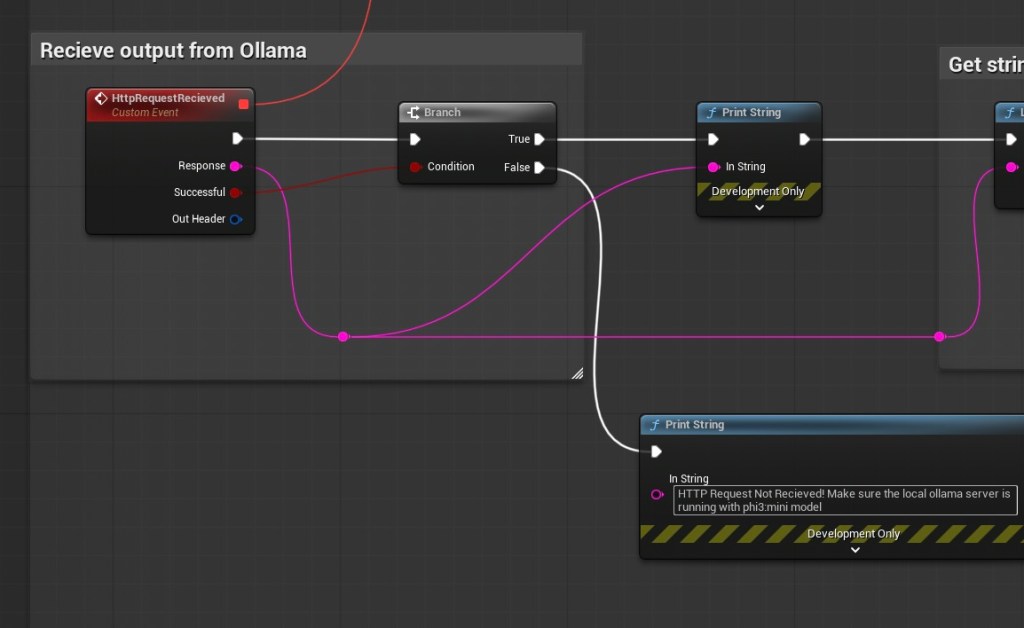
Once the request is complete, the ‘HTTP Request Received’ Event is called. The successful parameter is plugged into a branch.
Optionally this is where we could probably also include a timeout, so that in case the server takes too long to respond, the computer can give up and open itself to another input. But for the purposes of this explanation, I’ve kept it simple.
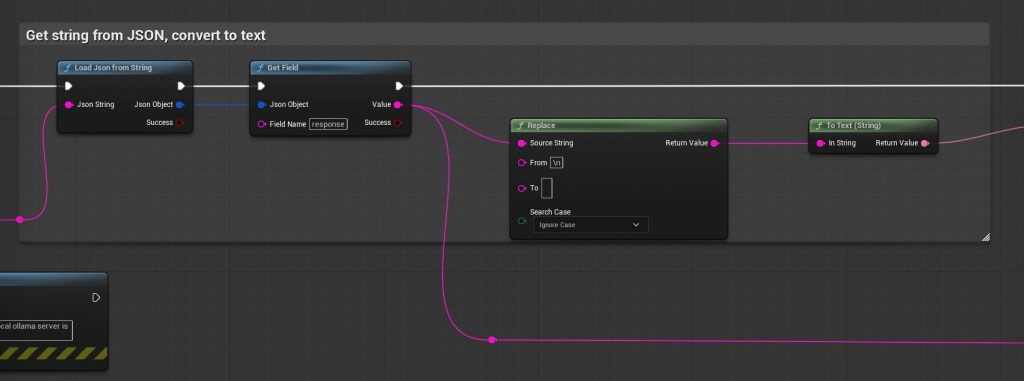
This bit is really straightforward, we’re getting the JSON reply from the server, reading the ‘response’ parameter as a string, and converting it to text.
In this case, I’ve also used a replace node in between the string and convert to text, to make sure the system converts every ‘\n’ to an enter.
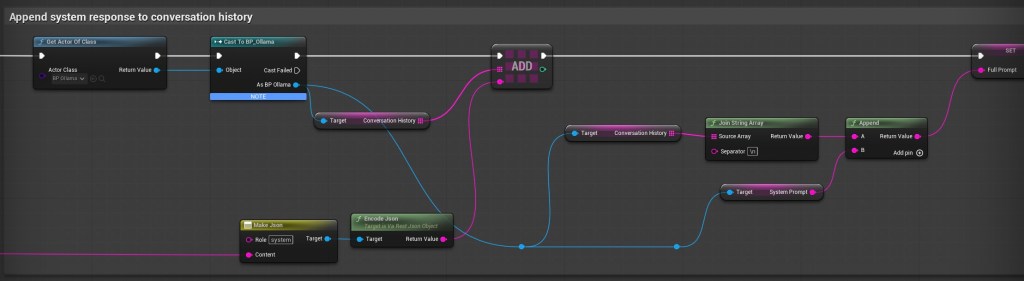
As mentioned previously, we need to mention a conversation history. These nodes just append the response from the ollama server into the conversation history.
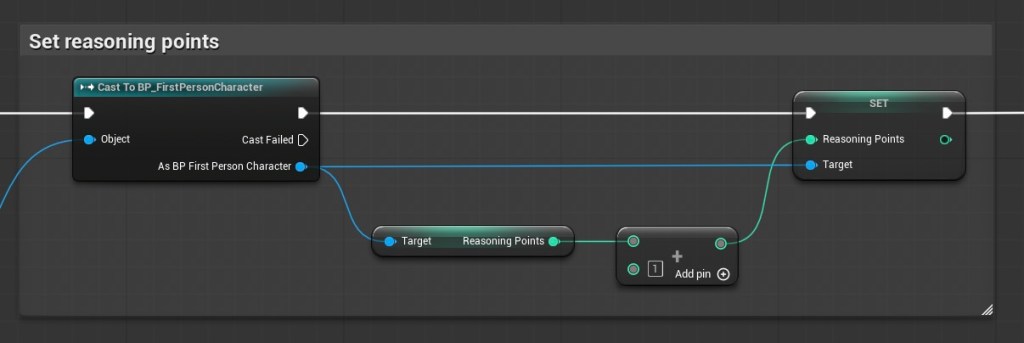
This is the end, I’ve basically just plugged it into a discrete mechanic, where every response from the ollama server grants the player with ‘reasoning point’
Blogs
SocKey | AI Development Blog
The Outline SocKey was developed on unreal engine, with help from VaRest to send JSON prompts to an open source AI that runs locally on the system, powered by Ollama. This means that anyone who wants to run the game would also have to install Ollama, and the mistral instruct AI model. The blueprint shown…

 Avi
Avi 
Leave a comment